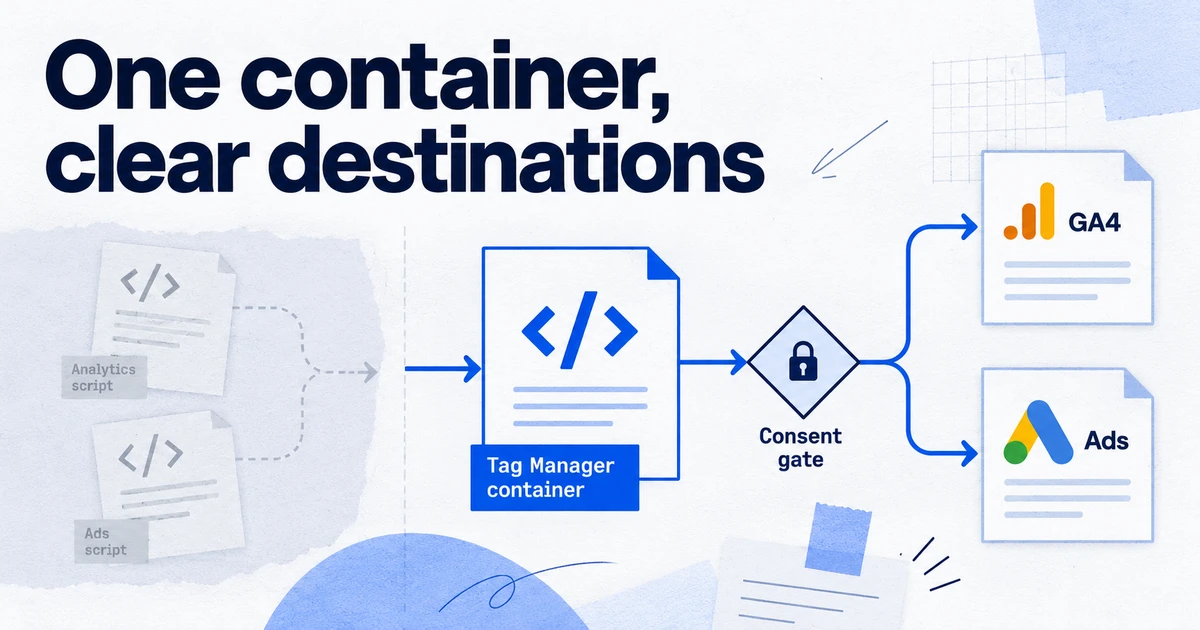
On 20 August 2026 Google announced that Google tags are being upgraded to full Tag Manager containers, and that Tag Manager containers can send data straight to Google destinations such as GA4 and Google Ads without loading gtag.js. Nothing changes automatically: you choose whether to optimise a container, and each Google destination then gets its own tag. Before opting in, check consent settings, triggers on your existing GA4 and Ads tags, and any site that loads a G- or AW- ID through a GTM snippet.
For a decade there were two ways to put Google measurement on a site: the gtag.js snippet, configured mostly in the Google product interfaces, and a Google Tag Manager container. Once Tag Manager gained its own Google tag type, many containers ended up with two layers of configuration talking to each other: GTM tags on one side, Google tag settings in the product interfaces on the other. In August 2026 Google started folding those layers together. This article explains what the update contains, what "destinations" now mean in a container, and what to check before you accept the optimisation prompt.
What did Google announce on 20 August 2026?
Google's Tag Manager help centre has a page called "Updates to Google tag and Google Tag Manager". It describes a set of changes introduced on 20 August 2026, meant to simplify measurement setup, improve performance and give one experience across Google's tagging products. It has three parts:
- A simpler interface. The container Overview page is reorganised, with a new central Settings location for container-wide settings. Triggers, Variables, Templates and Folders move into a collapsible Advanced section.
- Google tag and Tag Manager unification. Google tags are upgraded to full Tag Manager containers. A site that only uses the Google tag can now use Tag Manager's interface-driven tagging, debugging and version control. Google says this upgrade does not change how those tags behave on the page.
- Container optimisation. Tag Manager containers can send data directly to Google destinations. Before this, a container loaded extra JavaScript (gtag.js) to send data to a Google product, which Google says could add latency to measurement.
The same page is clear that this is opt-in. Google recommends optimising, but no changes are made automatically.
What is a destination, and what changes in the container?
A destination is a Google product account that receives data: a GA4 property (G- ID), a Google Ads account (AW- ID), or a Floodlight configuration (DC-). In the Google tag settings you have been able to connect several destinations to one tag ID for some time. If you have the Administrator role you click +Destination in the Destinations section and pick from the accounts you administer.
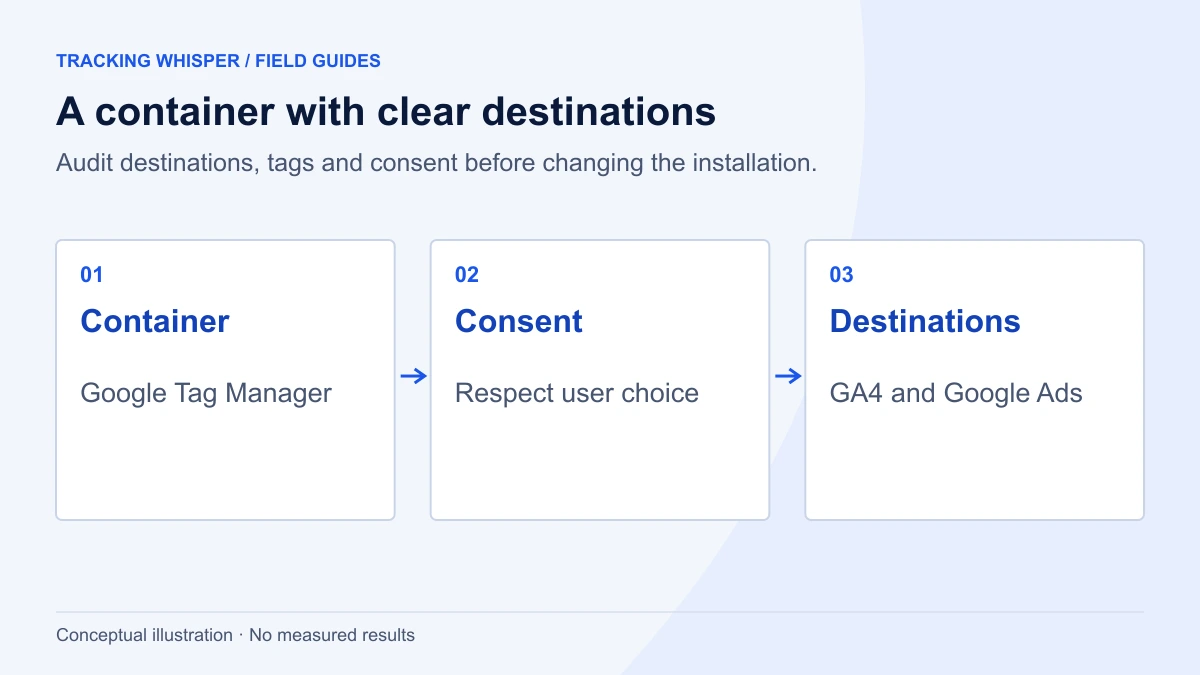
The August change concerns how a GTM container talks to those destinations. Until now, a Google tag inside a GTM container loaded gtag.js for each tag ID, and gtag.js then sent the hits. After optimisation, the container sends to the destination itself. Google describes the new setup as each Google destination having its own tag, "preserving existing setup and triggers for automation events".
In practice, that gives you this before and after.
| Area | Before optimisation | After optimisation |
|---|---|---|
| Script loading | gtm.js, plus gtag.js loaded for each Google tag | gtm.js sends to Google destinations directly |
| Google products in the container | Google tag plus GA4 event and Ads tags that reference it | One Google destination tag for each destination, keeping existing triggers |
| Container-wide settings | Spread between the Google tag and individual tags | Central Settings location on the Overview page |
| Triggers, variables, templates | Main navigation | Collapsible Advanced section |
| Adoption | Not applicable | Optional, you choose to optimise |
Google has not published a field-by-field mapping of how each legacy tag type converts. Treat the table as a description of the announced behaviour, not a guarantee about your container, and check your own container in a workspace before publishing.
Which installations does Google now treat as wrong?
Two related help pages matter as much as the announcement, because they affect sites whose snippet doesn't match the ID they load.
The ID now decides what a container can run. A release on 9 July 2026 changed how Tag Manager handles containers loaded through unsupported paths such as /gtag/js or /gtag/destination. Before, those containers fell back to a restricted state. Now the ID controls the behaviour, whatever the path:
- An ID starting
GTM-allows all tag types, including Custom HTML, custom JavaScript variables and third-party templates. - Product IDs such as
G-orAW-are limited to Google tags and variables, and can only send data to Google services.
Google says installations that use its own snippets are unaffected, and that administrators of heavily affected containers were told by email.
gtm.js will stop waiting for gtag('config'). The page "Set up your Google tag installation correctly for gtag.js" says GTM snippets will soon be updated so they no longer recognise or wait for gtag('config') commands. It calls one pattern unsupported: loading a G-, AW- or DC- ID through the GTM snippet path (gtm.js). Google has not published a date for this, so treat it as pending, not as something that has already changed.
If a site uses gtag('config') to configure Google Ads or GA4, it should use the standard gtag.js snippet:
<!-- Google tag (gtag.js): replace TAG_ID with your G-, AW- or GT- ID -->
<script async src="https://www.googletagmanager.com/gtag/js?id=TAG_ID"></script>
<script>
  window.dataLayer = window.dataLayer || [];
  function gtag(){dataLayer.push(arguments);}
  gtag('js', new Date());
  gtag('config', 'TAG_ID');
</script>
If the site uses a GTM container, keep the gtm.js snippet with the GTM- ID and move any configuration out of inline gtag('config') calls and into the container.
Will my consent setup still work?
The update doesn't change how consent mode works in Tag Manager. The building blocks are the same:
- the Consent Initialization - All Pages trigger, for tags that set consent defaults or load your consent management platform before any other tag fires;
- per-tag Advanced Settings > Consent Settings, where Google tags have built-in consent checks and other tags can require extra consent;
- the Consent Overview page, which lists the consent configuration of every tag.
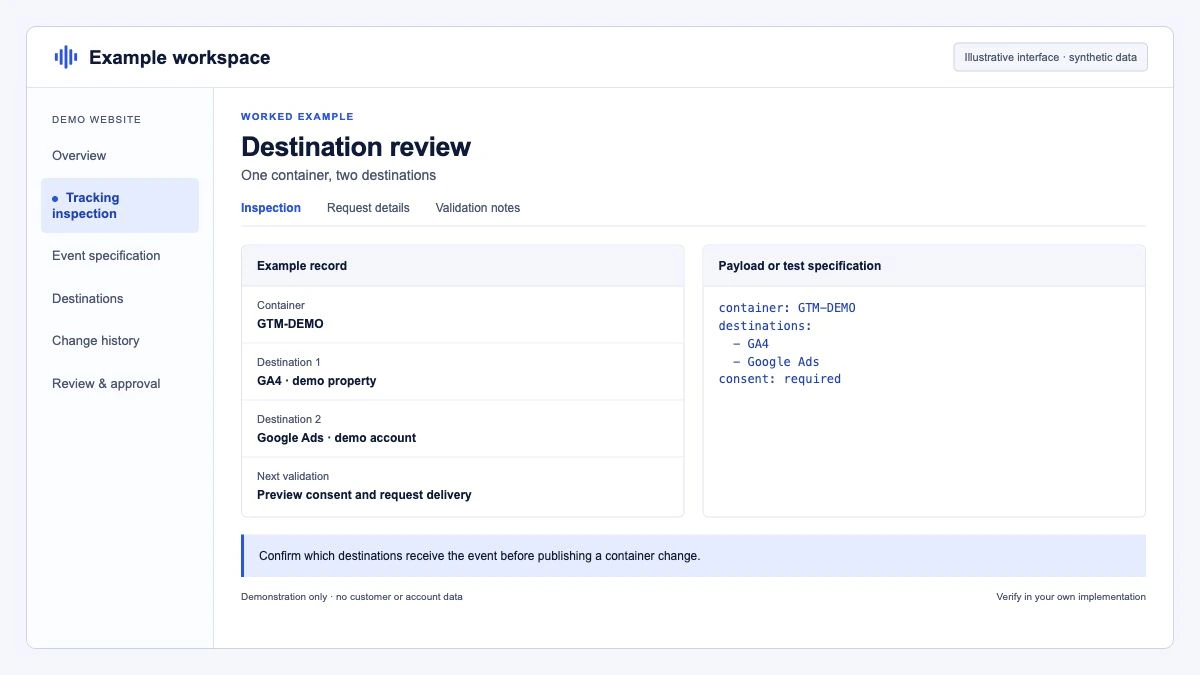
The risk sits in the optimisation step. If the destination tags created for GA4 or Google Ads don't carry the consent configuration of the tags they replace, you could send hits before consent is updated, or lose them. After optimising, open Consent Overview and confirm that every Google destination tag shows built-in consent checks and that nothing ends up under "Consent Not Configured". For the background, see our glossary entry on consent mode.
Before you publish, check in Preview mode that the consent default is set in the first event and the update follows the banner choice. Then watch the outgoing requests to confirm the gcs and gcd parameters change accordingly.
How do I evaluate the optimisation safely?
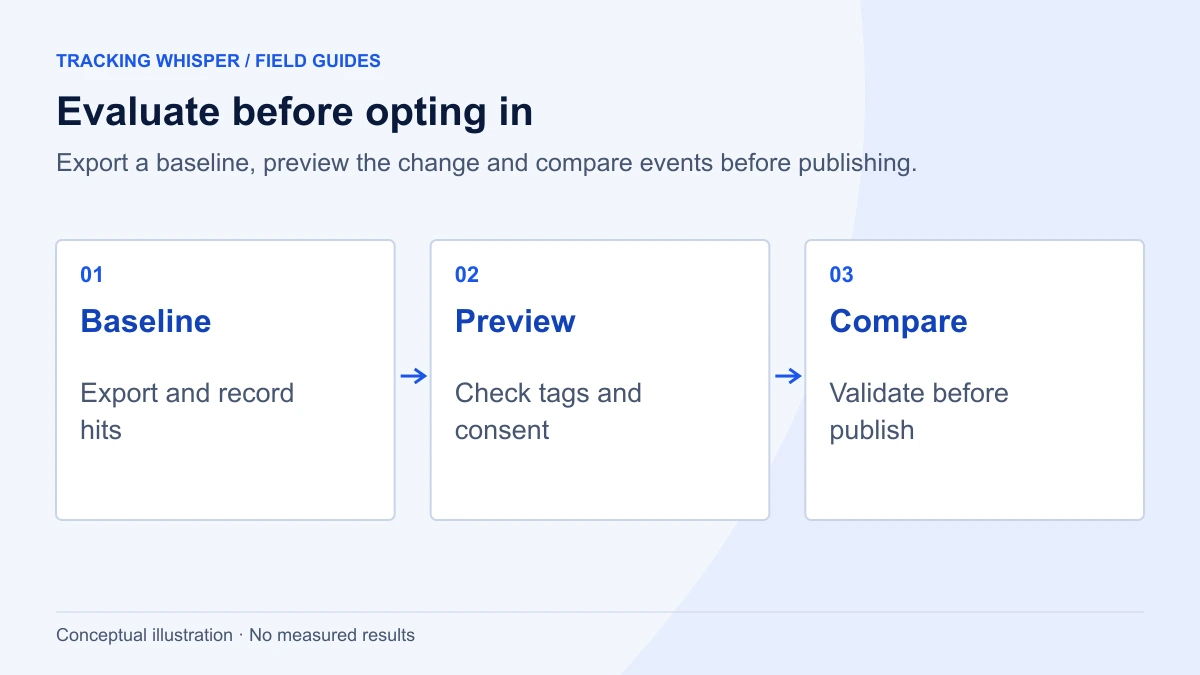
Treat it like any change to a production container: build it in a workspace, compare, then publish.
- Export the live version. In Admin, use Export Container on the current published version. That is your rollback file and your baseline for comparison.
- Create a dedicated workspace for the optimisation so it doesn't mix with other pending changes.
- List what you expect to change. Write down every Google tag, GA4 event tag and Google Ads tag (conversion tracking, remarketing, conversion linker), with its triggers, exceptions, consent settings and tag sequencing.
- Accept the optimisation in that workspace and review the workspace changes list. Check that each destination tag kept its triggers and exceptions.
- Test in Preview mode on your key templates: landing page, product page, form success, checkout and purchase confirmation. For each, check that requests go to the expected GA4 and Ads endpoints, that event names and parameters match, and that conversion values and currencies are unchanged.
- Compare with the live site. Run the same journeys against the published container and compare the requests. Differences you didn't expect are the things to explain before publishing.
- Publish with a clear version name and description, then watch GA4 realtime and the Google Ads conversion diagnostics for the next day or two.
A simple test event helps with step 5. Push it from the browser console and confirm that each destination receives it:
window.dataLayer = window.dataLayer || [];
window.dataLayer.push({
  event: 'tw_destination_test',
  test_id: 'opt-check-' + Date.now()
});
Add a temporary GA4 event trigger on tw_destination_test, check it in DebugView, and remove the tag and trigger before you publish.
What about sites that only use gtag.js?
For sites without GTM, Google says the upgrade of the Google tag to a container does not change in-page behaviour. What's new is the choice: you can open the tag in the Tag Manager interface and manage events there, with versions and Preview, instead of editing site code or relying only on settings in GA4 and Google Ads.
Google's announcement also describes a visual way to create events: you pick elements on your site and the system writes the selectors and triggers. Google says this is in beta for purchase conversions in Google Ads, with more use cases to follow during the year. Tags built this way still end up as triggers and tags in a container, so they need the same review as anything else you publish.
What should agencies check across client containers?
If you look after many containers, the change is mostly an audit task:
- Snippet and ID mismatches. Find any site that loads a
G-,AW-orDC-ID through gtm.js, or aGTM-ID through/gtag/js. Since July those sites run in the mode their ID allows, so Custom HTML tags behind a product ID will not fire. - Inline gtag('config') next to a GTM snippet. That is the pattern Google says will stop working. Move that configuration into the container.
- Duplicate measurement. Sites with both a hard-coded gtag.js snippet and a GA4 tag in GTM often double count page views. Fix that before optimising, or you'll be comparing two wrong numbers.
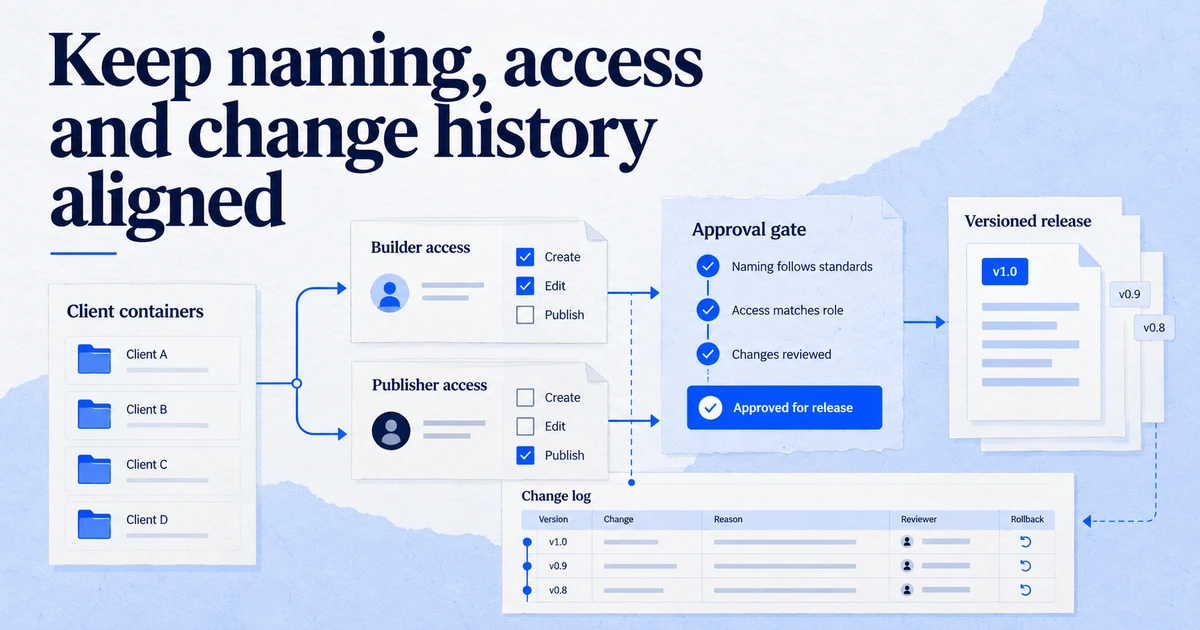
- Who can accept the prompt. Adding destinations to a Google tag needs the Administrator role. Decide who on the account is allowed to optimise containers, and record it in your change log.
A GTM container audit is a sensible first step, and our page on the Google Tag Manager integration lists what we check.
Key takeaways
- On 20 August 2026 Google announced that Google tags become full Tag Manager containers, and that containers can send data to Google destinations without loading gtag.js.
- Optimisation is optional. Each Google destination gets its own tag, and Google says existing setup and triggers are kept.
- Since 9 July 2026 the container ID, not the loading path, decides what a container can run:
GTM-runs all tag types,G-andAW-run Google tags only. - Google says gtm.js snippets will soon stop recognising
gtag('config'). Sites that mix the two should be fixed now. No date is published. - Test the optimisation in a separate workspace, compare requests and consent signals with the live version, and keep the exported container as a rollback.
Tracking Whisper works in GTM through its own workspace: it can audit a container for the snippet and consent issues above, prepare changes there, and publish only after a person approves. It then checks the key pages in a real browser.
Frequently asked questions
Do I have to upgrade my GTM container to the new Google tag setup?
No. Google's help page on the update says no changes are made automatically and you choose whether to adopt the new configuration. Google recommends optimising containers, but an existing container keeps running as it is until you change it.
What is a Google destination in Tag Manager?
A destination is a Google product account that receives data from a tag, such as a GA4 property or a Google Ads account. In the August 2026 update each Google destination gets its own tag in the container, and the container sends data to it directly instead of loading gtag.js first.
Will my GA4 and Google Ads triggers survive the container optimisation?
Google says each destination keeps its own tag so that existing setup and triggers for automation events are preserved. You should still compare the workspace before and after in Preview mode, because custom triggers, blocking triggers and tag sequencing are where differences usually show.
Why did tags stop firing when I load a G- ID through the GTM snippet?
Since a 9 July 2026 release, the ID used to load a container decides what it may run, whatever the path. A G- or AW- ID only runs Google-provided tags and variables, so Custom HTML or third-party templates will not fire. Load a GTM- ID with the gtm.js snippet if you need all tag types.
Does the change affect sites that only use gtag.js?
Google says the upgrade of Google tags to Tag Manager containers does not change their in-page behaviour. What it adds is the option to manage those tags in the Tag Manager interface, with debugging and version control.
Sources
- Updates to Google tag and Google Tag Manager, Tag Manager Help
- Release notes, Tag Manager Help
- Manage tagging behavior using the container ID, Tag Manager Help
- Set up your Google tag installation correctly for gtag.js, Tag Manager Help
- Google tag management, Tag Manager Help
- Tag Manager consent mode support, Tag Manager Help
Dimitris builds Tracking Whisper and writes about tracking, analytics and data from the work the agent does every day: GTM containers, GA4 properties, ad platforms and the numbers in between.