Enhanced conversions send hashed first-party data, such as an email address or phone number, with your conversions so Google Ads can match them to signed-in users when cookies are missing. Since June 2026 web and leads are one on/off setting under Goals > Settings > Customer data use, and since April 2026 Google Ads accepts user-provided data from the tag, Data Manager and API connections at the same time. Set it up by passing user data on the conversion (or on the lead form), uploading qualified leads through the Data Manager API, and verifying the em parameter and the diagnostics report.
Enhanced conversions are one of the few Google Ads measurement features that get more useful as cookies get less reliable. Instead of depending on a click identifier surviving in the browser, the conversion carries hashed data the user gave you, such as an email address, which Google can match to a signed-in account. In 2026 Google simplified the settings and moved lead uploads to a new API, so many accounts set up in 2023 or 2024 now look different from the guides written then. This article covers the current setup for web and leads and, more importantly, how to prove it works.
What changed in 2026?
Google's help page "Updates to your enhanced conversions settings" describes two steps:
- April 2026: Google Ads began accepting user-provided data from website tags, Data Manager and API connections at the same time. You no longer pick one implementation method.
- June 2026: enhanced conversions for web and enhanced conversions for leads became a single feature with one on/off switch. The method selection disappeared from the account.
Google says no action is needed for accounts that had already accepted the customer data terms: they were migrated to the unified setting.
Separately, uploads of offline conversions and enhanced conversions for leads moved to the Data Manager API. The Google Ads Developer Blog post "Changes to Offline Click Conversion Import Support in the Google Ads API" said that from 15 June 2026, UploadClickConversions requests fail with CUSTOMER_NOT_ALLOWLISTED_FOR_THIS_FEATURE when the developer token had sent no offline conversion uploads between 17 December 2025 and 15 June 2026. Everyone else should use the Data Manager API. Our Data Manager API migration guide covers that side in detail.
Web or leads: which do you need?
| Enhanced conversions for web | Enhanced conversions for leads | |
|---|---|---|
| Where the conversion happens | On the website (purchase, sign-up) | Offline, after a website lead (qualified lead, closed deal) |
| What the tag sends | Hashed user data with the conversion | Hashed user data when the form is submitted |
| What you upload | Nothing | The offline conversion with the same hashed data |
| Conversion action source | Website | Import from clicks |
| Needs GCLID stored in CRM | No | No, but you can send it |
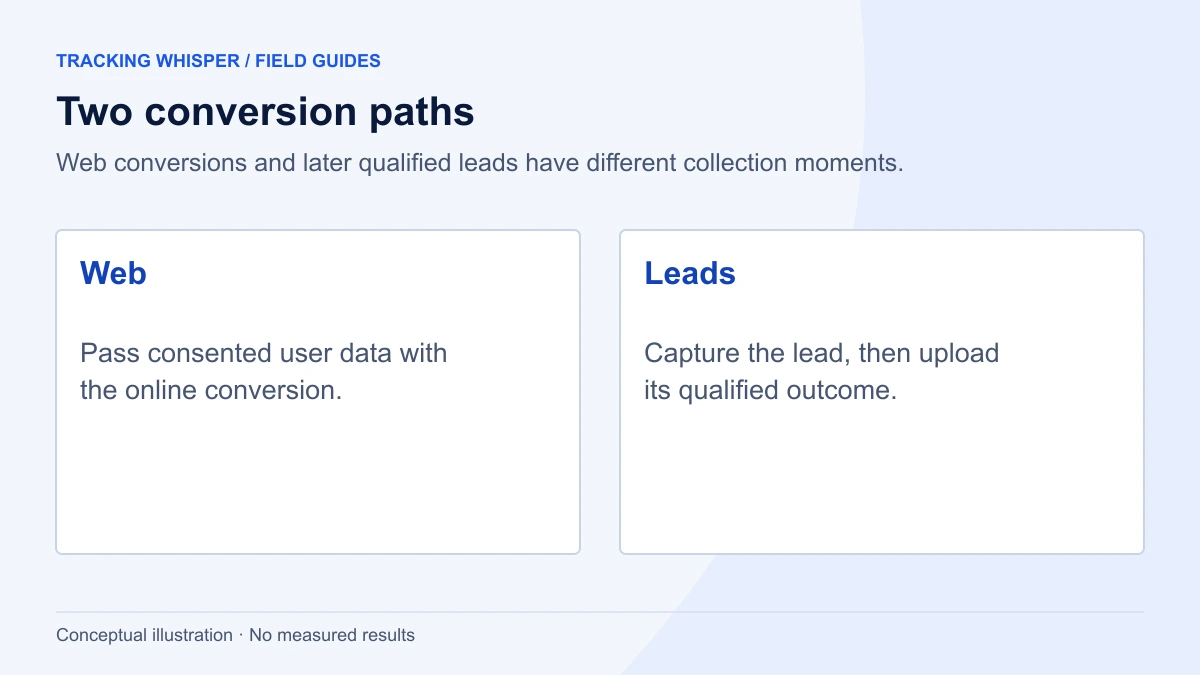
Most lead generation businesses need both: web for the form submission itself, if you bid on it, and leads for the outcomes that happen in the CRM later.
Step 1: turn on the setting and accept the terms
- In Google Ads, open Goals > Settings.
- Expand Customer data use.
- Tick Turn on enhanced conversions. Optionally tick Turn on conversion-based customer lists if you want Google to build customer lists from conversion data.
- Select Agree and save, review the customer data terms and confirm.
Then check the Google tag itself. Under the Google tag's Configure tag settings, Allow user-provided data capabilities must be on, otherwise the tag will not send the data whatever your GTM container does. The same section holds Automatically detect user-provided data, which scans pages for email addresses and phone numbers. It is a fallback, not a plan: an explicit mapping is more reliable.
Step 2: pass user data on web conversions
In Google Tag Manager
Google's GTM guide offers three ways to supply the data. You only need one.
- Automatic: the tag detects data on the conversion page.
- Manual configuration: you point to CSS selectors or, better, to dataLayer variables.
- Code: a Custom JavaScript variable or data object returns the data.
For a purchase confirmation page, the cleanest route is to push the data into the dataLayer and map it with a User-Provided Data variable.
// On the order confirmation page, before the purchase event fires
window.dataLayer = window.dataLayer || [];
window.dataLayer.push({
  event: 'purchase',
  ecommerce: {
    transaction_id: 'T-20931',
    value: 249.00,
    currency: 'EUR'
  },
  user_data: {
    email: 'anna.schmidt@example.de',
    phone_number: '+4930123456789'
  }
});- Create Data Layer Variables for
user_data.emailanduser_data.phone_number. - Create a variable of type User-Provided Data, choose Manual configuration, and map email and phone to those variables.
- Open the Google Ads Conversion Tracking tag for the purchase, tick Include user-provided data from your website, and select the User-Provided Data variable.
- Preview, buy a test product, publish.
Phone numbers should be in E.164 format: a plus sign, the country code, then digits only.
With gtag.js
Without GTM, set the user data before the conversion event. The Google tag normalises and hashes plain values. If you prefer to hash yourself, use the sha256_ keys, such as sha256_email_address and sha256_phone_number.
gtag('set', 'user_data', {
  'email': 'anna.schmidt@example.de',
  'phone_number': '+4930123456789'
});
gtag('event', 'conversion', {
  'send_to': 'AW-123456789/AbCdEfGhIjk',
  'value': 249.00,
  'currency': 'EUR',
  'transaction_id': 'T-20931'
});
Replace the send_to value with your own conversion ID and label.
Step 3: capture data on lead forms
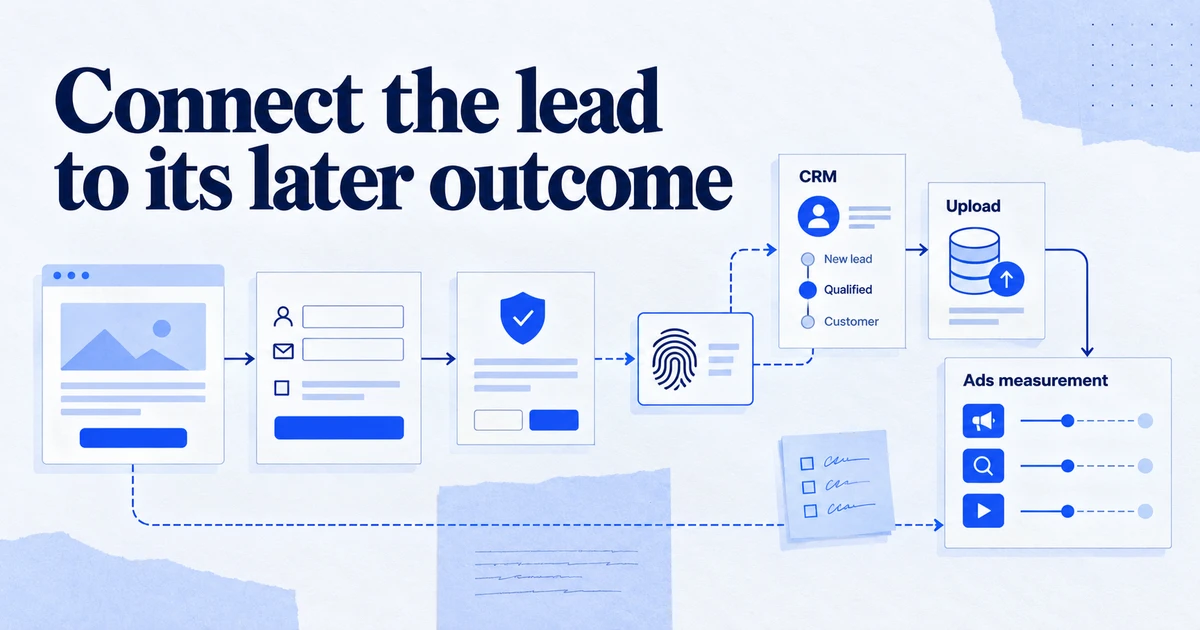
For leads, the tag must send hashed data at the moment the form is submitted, so that the later upload has something to match against.
In GTM, Google's guide for leads uses the Google Ads User-Provided Data Event tag:
- Create a tag of type Google Ads User-Provided Data Event.
- Enter the conversion ID of the conversion action you enabled for enhanced conversions. Google says it must use the same conversion tracking ID and label.
- Supply a User-Provided Data variable, as in step 2.
- Trigger it on the form submission, after the fields are filled in. A custom event that your form pushes on successful submission is more reliable than GTM's generic Form Submission trigger on forms that submit by JavaScript.
// Pushed by the form handler after the server accepts the submission
window.dataLayer.push({
  event: 'lead_submitted',
  user_data: {
    email: document.querySelector('#email').value,
    phone_number: '+447700900123'  // normalise to E.164 in your form code
  }
});
The User-Provided Data Event tag is also the right choice when the data is entered on one page but the conversion fires on a later one.
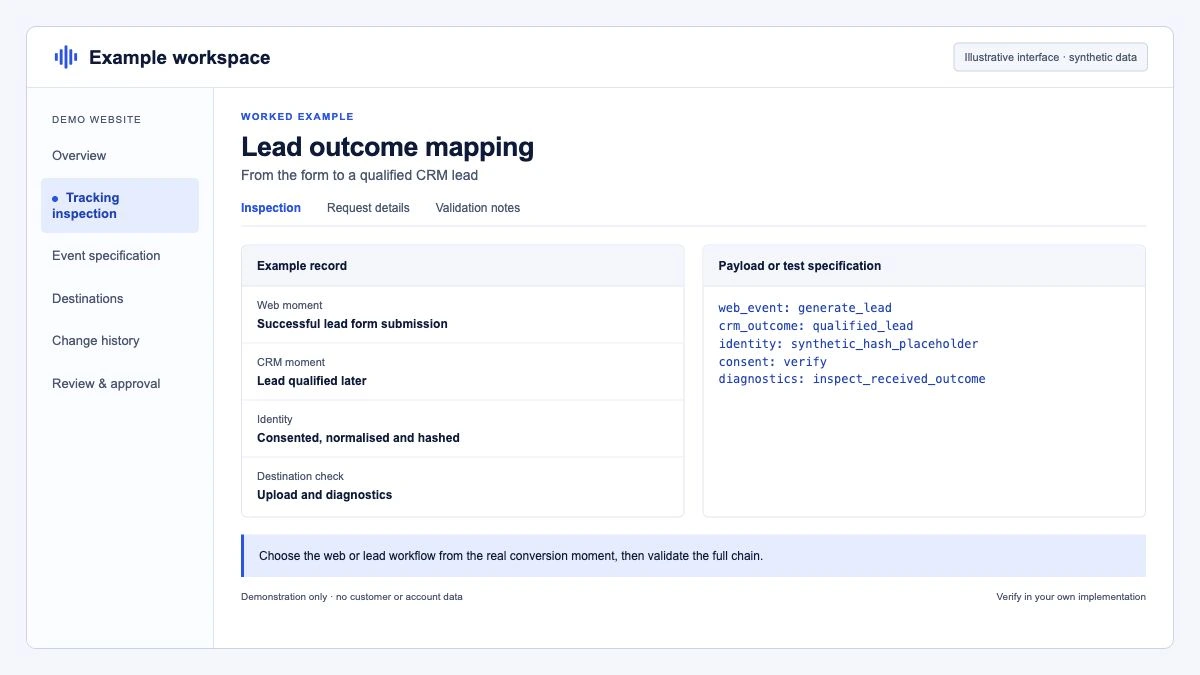
Step 4: upload qualified leads
When a lead becomes a qualified opportunity or a customer, you import that conversion against a conversion action with the source Import from clicks, including the hashed email or phone number captured on the form. Google says enhanced conversions for leads do not require storing the GCLID, but you can include it where you have it.
New integrations upload through the Data Manager API, or through Data Manager connections in the Google Ads interface. Either way, you normalise and hash the data yourself. Google's "Format user data" guide sets the rules:
- Email: lowercase and remove all whitespace. For
gmail.comandgooglemail.comonly, also remove dots in the part before the @, and remove a+and everything after it. Leave other domains as they are. - Phone: E.164, a plus sign and digits only.
- Hash: SHA-256, encoded as hex or Base64.
import hashlib

def normalise_email(raw: str) -> str:
    email = "".join(raw.split()).lower()
    local, _, domain = email.partition("@")
    if domain in ("gmail.com", "googlemail.com"):
        local = local.split("+", 1)[0].replace(".", "")
    return f"{local}@{domain}"

def sha256_hex(value: str) -> str:
    return hashlib.sha256(value.encode("utf-8")).hexdigest()

print(sha256_hex(normalise_email(" Cloudy.SanFrancisco+shopping@gmail.com ")))
# hashes "cloudysanfrancisco@gmail.com"
If the web tag and the CRM upload normalise the same email differently, the hashes will not match and the lead will not attribute. Test with one real submission end to end before you trust the numbers.
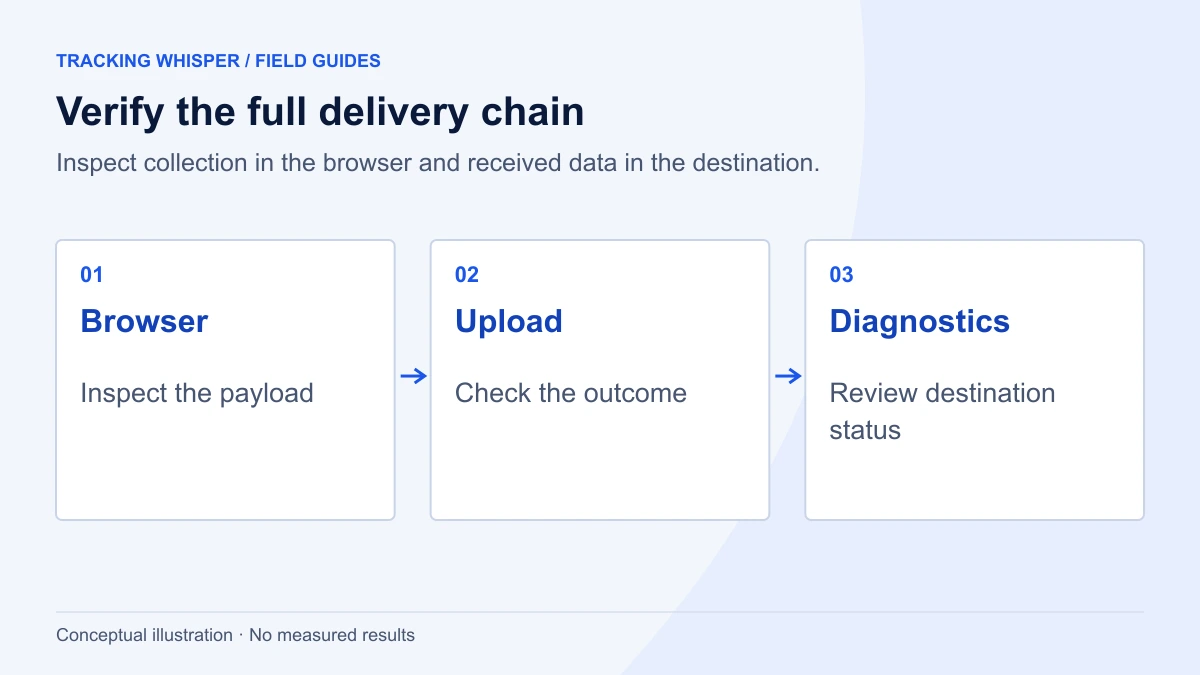
Step 5: verify in the browser
Configuration screens tell you what should happen. The request tells you what does.
- Open your browser's developer tools on the conversion or form page and filter the Network tab for
pagead. - Complete the conversion. Find the request to
googleadservices.com/pagead/conversion/. Google notes that some browsers send it togoogle.com/pagead/1p-conversion/instead. - In the Payload tab, find the
emparameter.
Google's guide explains what you will see:
em value | Meaning |
|---|---|
| Missing | The tag is not configured to send user data |
tv.1~em. with nothing after it | The parameter is sent, but empty |
tv.1~em.e1 | Data is sent but there is a problem with it, check diagnostics |
tv.1~em followed by a long hashed string | Data is being sent |
Tag Assistant shows the same thing: in the debug summary, open the Conversion item under Output and look for em in the hit details.
Also check consent. Our Consent Mode v2 checklist explains why ad_user_data must be granted before user data is sent. Test once with consent accepted and once with it declined, and make sure the declined case sends no user data.
Step 6: read the diagnostics report
After a few days of traffic, open the conversion action in Google Ads and look at the enhanced conversions diagnostics. The key figure is the coverage rate: the share of conversion events that carried user-provided data. Statuses include:
- Recording enhanced conversions: working with no major issues.
- Needs attention: active but with errors, such as missing data.
- No recent data: nothing recorded in the last 7 days.
For lead uploads, the diagnostics grade data quality as Excellent, Good, Needs attention or No recent data. A low coverage rate on web conversions usually means the data is missing on some templates, such as guest checkout or a second payment provider's return page. A low match on leads usually points to normalisation differences or uploads that carry no email or phone at all.
Common mistakes
- Mapping a field that is empty for some users. Guest checkouts, Apple Pay express flows and third-party booking widgets often reach the confirmation page without an email in the dataLayer.
- Sending data before consent. If
ad_user_datais denied, the tag should not carry user data. A CMP mapping that only updatesad_storagebreaks this silently. - Mismatched conversion IDs. The User-Provided Data Event tag must use the same ID and label as the conversion action with enhanced conversions on.
- Hashing before normalising. Hashing an email that still has a trailing space or capital letters produces a valid hash that never matches.
- Legacy upload code. Scripts calling
UploadClickConversionsfrom an integration without legacy access fail. Move them to the Data Manager API.
Key takeaways
- Since June 2026, enhanced conversions for web and leads are one setting under Goals > Settings > Customer data use, and Google Ads accepts user data from tags, Data Manager and APIs at the same time.
- On the web, pass email and phone through the dataLayer to a User-Provided Data variable and tick Include user-provided data from your website on the conversion tag.
- For leads, fire a Google Ads User-Provided Data Event tag on successful form submission, then upload the qualified lead with the same hashed data through the Data Manager API.
- Normalise exactly as Google's formatting guide says, including the Gmail-only rules, or hashes will not match.
- Verify the
emparameter in the request, test with consent declined, and watch the coverage rate in the diagnostics report.
Tracking Whisper builds changes like these in its own GTM workspace and publishes only after a person approves them, then checks the conversion pages in a real browser, including the dataLayer, the consent state and the hits that leave the page. The enhanced conversions glossary entry has the short definitions, and tracking monitoring covers what happens when coverage drops later.
Frequently asked questions
What is the difference between enhanced conversions for web and for leads?
For web, the Google tag sends hashed user data with a conversion that happens on your site, such as a purchase. For leads, the tag sends hashed data when a form is submitted, and you later import the conversion that happened offline, such as a closed deal, with the same hashed data. Since June 2026 Google Ads manages both with one setting.
Do I still need the GCLID for enhanced conversions for leads?
Google says enhanced conversions for leads does not require you to store the GCLID in your forms or CRM, because it matches on user-provided data such as email or phone. You can still send the GCLID if you have it. The GCLID is required only if you do not use a tag to collect user-provided data.
How do I check that enhanced conversions are working?
Open the conversion request to googleadservices.com/pagead/conversion/ in your browser's developer tools, or the hit details in Tag Assistant, and look for the em parameter. A value starting with tv.1~em followed by a long hash means data is being sent. Then check the diagnostics report in Google Ads for the coverage rate and status.
Should I hash email addresses before sending them?
In the Google tag you can send them unhashed and the tag normalises and hashes them, or send SHA-256 hashes under keys such as sha256_email_address. For uploads through the Data Manager API you normalise and hash yourself, following Google's formatting rules, for example lowercasing emails and using E.164 for phone numbers.
Does consent affect enhanced conversions?
Yes. Google's consent mode reference says the ad_user_data signal is needed for enhanced conversions. If ad_user_data is denied, user-provided data should not be sent, so check your consent setup before you judge coverage.
Sources
- Updates to your enhanced conversions settings, Google Ads Help
- Set up enhanced conversions for web using Google Tag Manager, Google Ads Help
- Set up enhanced conversions for web using the Google tag, Google Ads Help
- About enhanced conversions for leads, Google Ads Help
- Configure Google Tag Manager for enhanced conversions for leads, Google Ads Help
- About the enhanced conversions for web tag diagnostics report, Google Ads Help
- Format user data, Data Manager API, Google for Developers
- Changes to Offline Click Conversion Import Support in the Google Ads API, Google Ads Developer Blog
Dimitris builds Tracking Whisper and writes about tracking, analytics and data from the work the agent does every day: GTM containers, GA4 properties, ad platforms and the numbers in between.