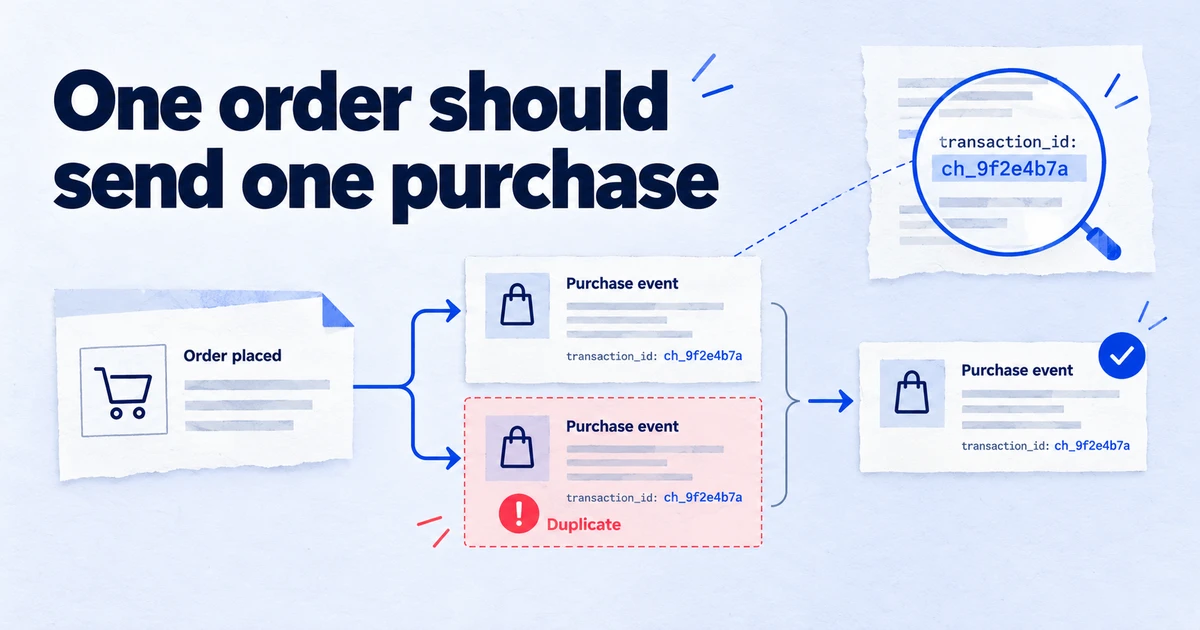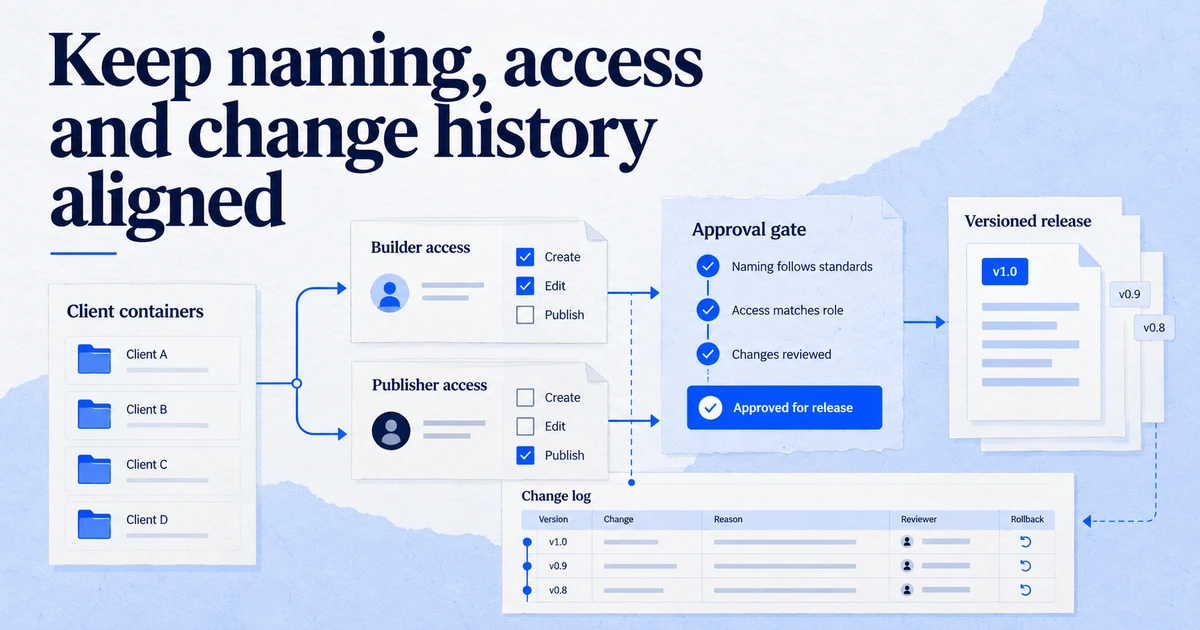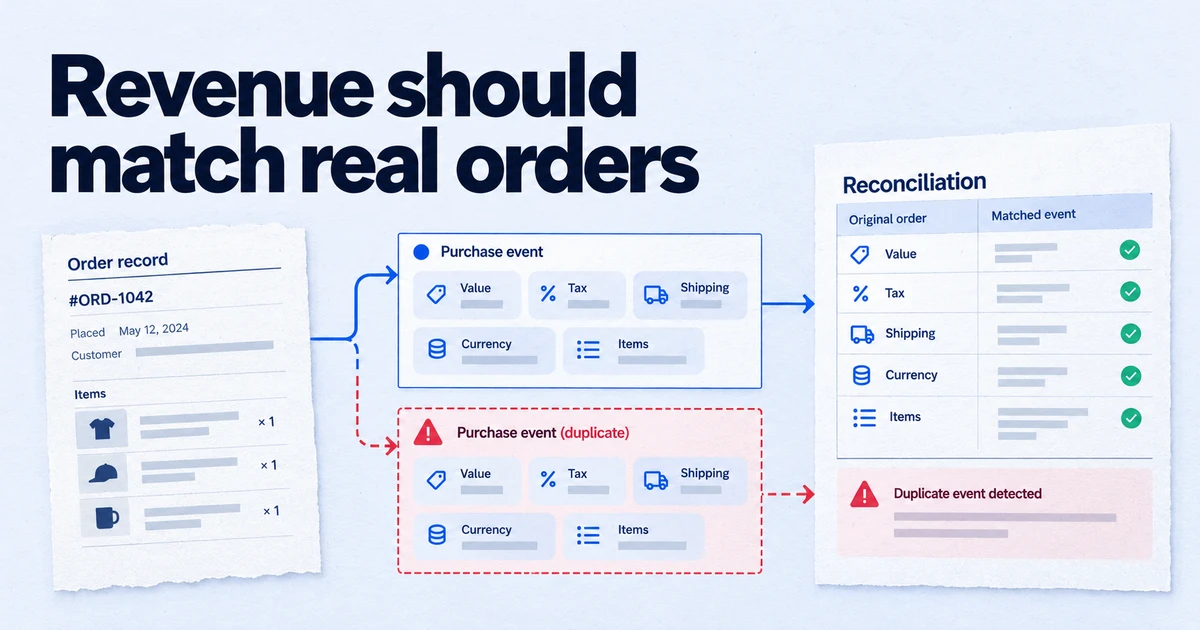
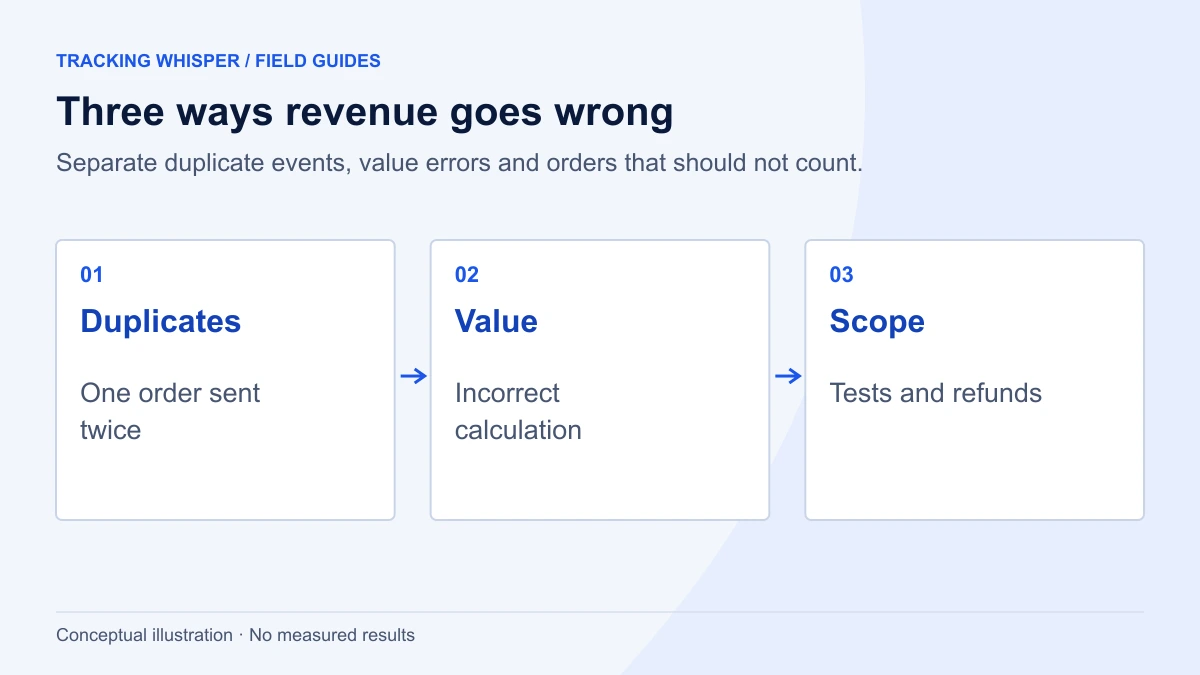
GA4 revenue usually runs above real sales for three reasons: the purchase event fires more than once, the value is built wrongly (shipping, tax, pre-discount prices, line totals, wrong currency), or orders that should not count (tests, refunds) stay in. Each mistake has a specific check, such as comparing transaction counts with the shop's order export, and a fix in the dataLayer or GA4 settings.
When GA4 revenue is lower than the shop's, people investigate. When it is higher, they often accept it, and the inflated number ends up in ROAS reports and bidding. GA4 revenue that runs above the order system usually comes down to a short list of implementation mistakes. Here are twelve, with how to spot each one and the fix that matches Google's documentation.
How do you check whether GA4 revenue is inflated?
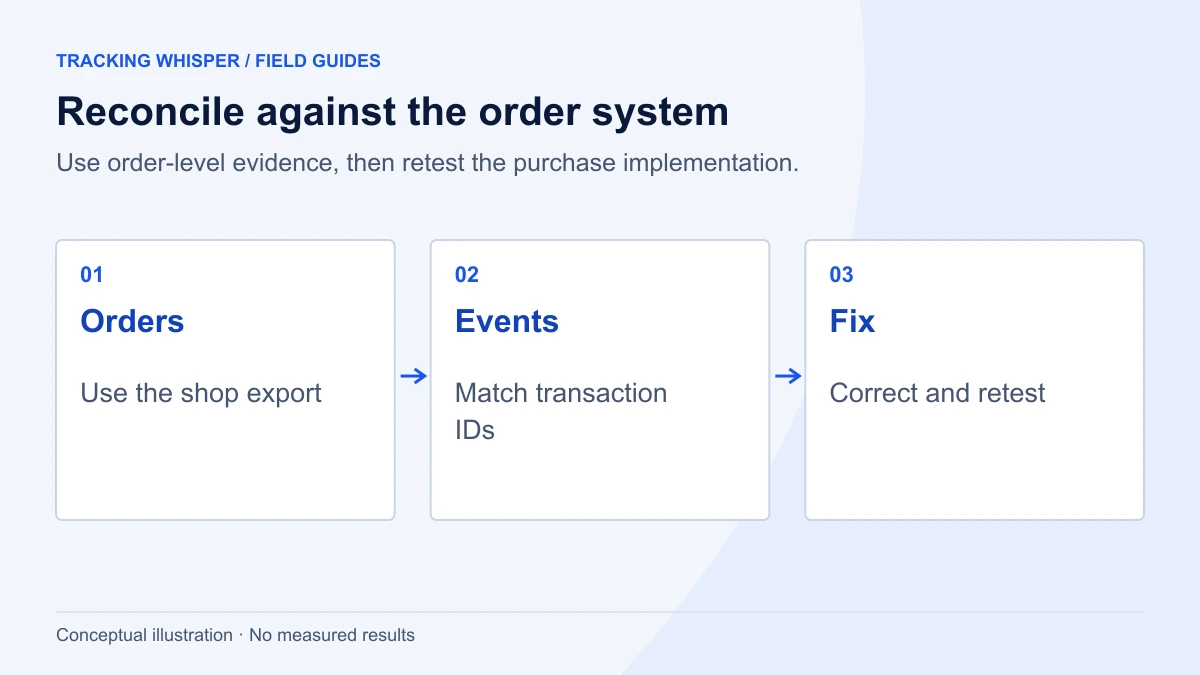
Before fixing anything, measure the gap. Pick a recent closed week and compare three numbers from GA4 with the shop's order export for the same dates and time zone:
- Transactions. GA4 Ecommerce purchases report or an exploration with the Transaction ID dimension.
- Revenue. GA4 Purchase revenue against the shop's net sales (excluding shipping and tax, see mistake 6).
- Transaction IDs. Export both lists and match them. IDs that appear twice in GA4 are duplicates; IDs in GA4 but not in the shop are tests or fakes.
A small gap below the shop is normal (consent, blockers). A gap above it means one of the mistakes below.
If the property exports to BigQuery, the duplicate check takes one query. The export holds event-level rows, so you can see every transaction ID that arrived more than once and how many users sent it. Google does not document whether its transaction ID deduplication is reflected in the export, so treat the result as "what the site sent" and the reports as "what GA4 counted":
SELECT
  ecommerce.transaction_id,
  COUNT(*) AS purchase_events,
  COUNT(DISTINCT user_pseudo_id) AS users,
  SUM(ecommerce.purchase_revenue) AS revenue_sent
FROM `my-project.analytics_123456789.events_*`
WHERE _TABLE_SUFFIX BETWEEN '20260928' AND '20261004'
  AND event_name = 'purchase'
GROUP BY 1
HAVING COUNT(*) > 1
ORDER BY purchase_events DESC;
Rows with users above 1 point to mistake 5 below (browser and server sending as different users). Rows with a null or empty transaction ID point to mistake 3. Replace the project and dataset names with your own; the dataset is named after the property ID. Our BigQuery integration page lists what else the export is useful for.
Keep the findings in a simple log: date range, GA4 count, shop count, number of duplicated IDs and the revenue they add. Repeat the same comparison after every fix, so you can show which change closed which part of the gap rather than reporting one large correction nobody can explain.
What does a correct purchase push look like?
This is the pattern from Google's ecommerce guide for Tag Manager: clear the previous ecommerce object, then push the purchase with its items.
dataLayer.push({ ecommerce: null });  // Clear the previous ecommerce object.
dataLayer.push({
  event: "purchase",
  ecommerce: {
    transaction_id: "T_12345",
    // Sum of (price * quantity) for all items.
    value: 72.05,
    tax: 3.60,
    shipping: 5.99,
    currency: "USD",
    coupon: "SUMMER_SALE",
    items: [
      {
        item_id: "SKU_12345",
        item_name: "Stan and Friends Tee",
        discount: 2.22,
        price: 10.01,
        quantity: 3
      },
      {
        item_id: "SKU_12346",
        item_name: "Google Grey Women's Tee",
        price: 21.01,
        quantity: 2
      }
    ]
  }
});
In GTM, a GA4 Event tag with event name purchase, triggered by a Custom Event trigger on purchase, picks this up when you tick Send Ecommerce data under More Settings, Ecommerce, and choose Data Layer as the source. The value checks out: 3 x 10.01 + 2 x 21.01 = 72.05.
Mistakes that send the purchase more than once
1. Not clearing the ecommerce object
GTM merges dataLayer pushes into one data model. If a page pushes add_to_cart and later purchase without { ecommerce: null } in between, keys from the earlier push can carry over. Google's guide clears the object before every ecommerce push. Do the same on every event, not only purchase.
2. Firing on every load of the confirmation page
Reloads, back-button visits and the "view your order" link in the confirmation email all reload the thank-you page. If the purchase fires on page load, each visit is a new purchase. The cleanest fix is server-side: the shop renders the purchase push only the first time an order is displayed. Where that is not possible, guard it in the browser:
(function () {
  var id = "T_12345"; // rendered by the shop
  var key = "ga4_purchase_sent_" + id;
  try {
    if (localStorage.getItem(key)) return;
    localStorage.setItem(key, "1");
  } catch (e) { /* storage blocked: rely on transaction_id dedup */ }
  window.dataLayer = window.dataLayer || [];
  dataLayer.push({ ecommerce: null });
  dataLayer.push({ event: "purchase", ecommerce: { transaction_id: id /* , value, currency, items */ } });
})();
3. Missing, empty or static transaction ID
GA4 deduplicates purchase events from the same user that carry the same transaction ID, on web streams only. That only works if the ID is the real order number. Two traps: an empty string (GA4 then deduplicates all purchases with transaction_id="", which undercounts) and a hardcoded test value left in production. The ID must not contain personal data such as an email address.
4. Two tags sending the same purchase
A shop platform's built-in Google integration plus a GTM tag, or a hardcoded gtag.js snippet plus GTM, sends two purchase events. They usually share the transaction ID, but not always the same format (1001 versus #1001), and then deduplication fails. In Tag Assistant, look for two purchase hits on one confirmation page. Our GTM audit checklist covers how to find parallel installations.
5. Browser and server both sending, as different users
Sending purchases from the server through the Measurement Protocol as a backup is reasonable, but GA4 deduplicates per user. If the server event uses a different client_id from the browser event, GA4 treats them as two users and keeps both. Pass the browser's client ID to the server with the order, or send from one place only. Duplicate purchase events in GA4 goes deeper into this.
Mistakes that build the value wrongly
6. Including shipping and tax in value
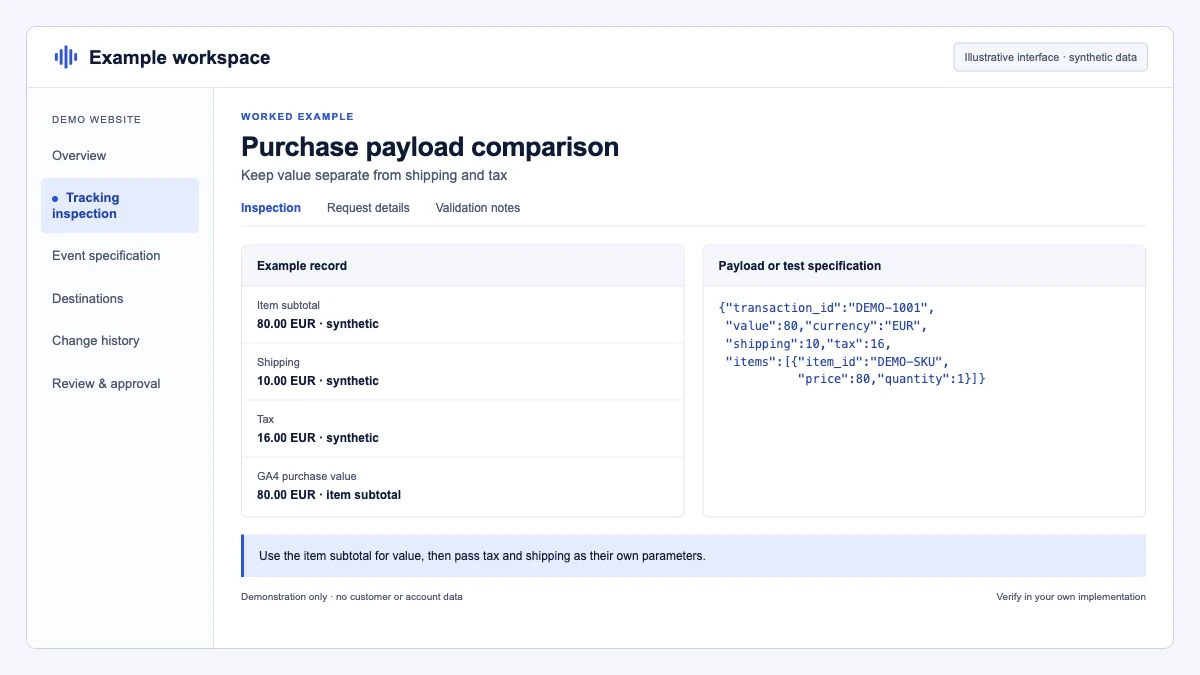
Google's recommended events reference defines value as the sum of price times quantity for all items, without shipping or tax, which go in their own parameters. Many implementations pass the order grand total. Revenue then sits above net sales by the tax rate plus shipping, which with standard VAT rates of around 20 percent in much of the EU is a large gap before anything else goes wrong.
7. A value that does not match the items
GA4 uses value and currency for event-level revenue (Purchase revenue, Total revenue) and price, quantity and currency for item-level revenue. When value is calculated separately from the items, the two disagree, and reports built on different metrics disagree with each other. Calculate value from the same items array you send.
8. Line totals sent as price
price is the unit price. Sending the line total (price already multiplied by quantity) multiplies item revenue by quantity a second time. A customer who buys four of an item at 25 shows 400 in item revenue instead of 100.
9. Prices before discount
Google's discount guide says to set price to the discounted unit price and put the unit discount in discount. GA4 treats the two as independent and does not subtract the discount for you. Pre-discount prices inflate item revenue on every promotional order, which is exactly when people look hardest at the numbers.
10. Wrong or hardcoded currency
Currency must be a three-letter ISO 4217 code, and it is required whenever you send value. A multi-currency shop that hardcodes "EUR" reports Swedish kronor or Danish kroner amounts as euros. GA4 converts genuine foreign-currency values into the property currency at the previous day's rate, so send the currency the customer actually paid in.
11. Numbers in the wrong unit or format
Some platforms store amounts in minor units. Sending 7205 instead of 72.05 multiplies revenue by 100. Formatted strings such as "1.234,56" cause their own problems. Send plain numbers with a dot as the decimal separator, and check a few real orders in DebugView.
Mistakes about which orders count
12. Test orders and refunds left in
Two sources of revenue that never reached the bank:
- Test orders. Developers and agencies place orders on production. Use a developer traffic data filter (for traffic in debug mode) or an internal traffic filter by IP. Start in Testing state: an active exclude filter permanently drops matching data, and a property can have up to 10 data filters.
- Refunds and cancellations. Send a
refundevent with the originaltransaction_id, and items withitem_idandquantityfor partial refunds. Without it, GA4 revenue never goes down.
dataLayer.push({ ecommerce: null });
dataLayer.push({
  event: "refund",
  ecommerce: {
    currency: "USD",
    transaction_id: "T_12345",
    value: 30.03,
    items: [{ item_id: "SKU_12345", price: 10.01, quantity: 3 }]
  }
});
Refunds usually happen in the back office, so they are typically sent server-side.
Which fix should you do first?
| Mistake | How to spot it | Typical size of error |
|---|---|---|
| Purchase sent twice (1 to 5) | Transaction IDs appearing twice in GA4 | Up to 2x on affected orders |
| Shipping and tax in value (6) | GA4 revenue tracks the shop's gross total | Tax rate plus shipping |
| Line totals or pre-discount prices (8, 9) | Item revenue above purchase revenue | Grows with quantity and promotions |
| Wrong currency or units (10, 11) | Odd spikes by country or single huge orders | 10x to 100x on affected orders |
| Tests and refunds (12) | IDs not in the shop export; revenue above net of returns | Depends on return rate |
Fix duplicates first, because they also distort conversion counts sent to Google Ads. Then fix value construction. Then filters and refunds. After each change, repeat the comparison from the first section for a full week before calling it done.
Key takeaways
- Compare transaction IDs, counts and revenue with the shop's order export before changing anything.
- Clear the ecommerce object before every push and fire the purchase once per order, with the real order number as transaction ID.
- Value is the sum of price times quantity, without shipping or tax; price is the discounted unit price.
- Send the currency the customer paid in, as a plain number in major units.
- Filter test traffic and send refund events, or GA4 revenue only ever goes up.
Tracking Whisper checks the purchase event on key pages in a real browser, including the dataLayer and the hits sent, and its monitoring can alert when transaction counts drift from what you expect. See GA4 integration for details.
Frequently asked questions
Why is GA4 revenue higher than my Shopify or WooCommerce revenue?
The most common causes are purchase events sent twice (two tags, or a reload of the confirmation page without a stable transaction ID), a value that includes shipping and tax while the shop report shows net sales, and refunds that were never sent to GA4. Compare transaction IDs from GA4 with the shop's order export to separate duplicates from value problems.
Should the GA4 purchase value include shipping and tax?
Google's recommended events reference says value should be the sum of price times quantity for all items, without shipping or tax. Send shipping and tax in their own parameters. Whatever you choose, document it so finance and marketing compare like with like.
Does GA4 remove duplicate purchases automatically?
On web streams, GA4 deduplicates purchase events from the same user that carry the same transaction ID. It does not help if the ID is missing or differs between the two events, and it does not work for app streams. An empty string as transaction ID makes GA4 deduplicate all such purchases into one, which undercounts instead.
Is currency required on the GA4 purchase event?
If you send value, currency is required for revenue metrics to be computed accurately. Use a three-letter ISO 4217 code such as EUR or GBP. GA4 converts other currencies into the property currency using the previous day's exchange rate.
How do I keep test orders out of GA4 revenue?
Place test orders with debug mode on and activate a developer traffic data filter, or mark internal IP ranges with an internal traffic filter. Test filters in Testing state first, because an active exclude filter permanently drops matching data.
Sources
- Measure ecommerce, Google Analytics developers
- Recommended events, Google Analytics developers
- Apply a discount to an ecommerce event, Google Analytics developers
- [GA4] Minimize duplicate key events with transaction IDs, Analytics Help
- Currency reference, Analytics Help
- [GA4] Data filters, Analytics Help
- Ecommerce setup Q&A, Analytics Help
Dimitris builds Tracking Whisper and writes about tracking, analytics and data from the work the agent does every day: GTM containers, GA4 properties, ad platforms and the numbers in between.